
Instead of manually rebuilding product records for every campaign, use your Takealot catalogue as a reference, map each item to your own online store, and publish a validated Google Merchant Center feed. A Takealot catalog to Google Shopping feed workflow needs a verified destination you control; ordinary seller access does not let you claim Takealot’s domain.
- Use Takealot catalogue records to enrich your Google Shopping feed, not to bypass website verification.
- Google Merchant Center needs product destinations on a website you can verify and claim.
- ReachDigital provides e-commerce paid media services; this workflow is not a standalone feed connector.
- Keep product IDs stable, validate variant matches, and test purchase tracking before launching Shopping ads.
Why this matters
A marketplace catalogue and a Google Shopping feed serve different purposes. Takealot records describe marketplace listings; Merchant Center needs product data that matches the destination, checkout and delivery arrangements behind your ads.
For your 2026 setup, separate catalogue reuse from advertising eligibility. Copying a product record does not transfer control of its marketplace landing page. If you only sell through Takealot, stop at the website requirement rather than building a feed that cannot support this ordinary merchant-account workflow.
ReachDigital is best suited to e-commerce brands seeking paid media management, not a standalone feed connector. Agency support covers campaign work; product ownership, account permissions and website eligibility still need resolving before launch.
Before you start
- Accounts and access: Have access to your authorised catalogue records, your online store, Google Merchant Center and Google Ads. You also need permission to change website verification and purchase tracking.
- Product materials: Prepare your store’s product destinations, authorised images, manufacturer identifiers and variant details. Marketplace descriptions are usable only when accurate for your store and cleared for reuse.
- The gotcha: You must verify and claim the website used for product destinations. A Takealot seller account does not grant that control over Takealot’s domain. Do not build this workflow around marketplace links you cannot claim.
Keep credentials out of spreadsheets and feed files. Grant account access to the people managing the setup rather than sharing passwords, and keep any marketplace access separate from the public product-data output.
Choose your feed workflow
For a first 2026 implementation, choose a method your team can maintain. A manually reviewed spreadsheet helps you inspect mappings; a generated file removes repeated editing once the mapping rules are reliable.
| Workflow | Best for | Advantage | Limitation | Recommendation |
|---|---|---|---|---|
| Reviewed spreadsheet | First-time mapping and small test batches | Easy to inspect individual fields and correct variant mistakes | Manual edits become another maintenance task | Use to prove the mapping |
| Generated feed file | Repeatable updates from your store’s product system | Reuses validated rules and supports scheduled retrieval | Requires development, monitoring and failure handling | Use after validation |
Neither method makes Takealot your verified storefront. Both must connect catalogue information to eligible product pages on your own claimed website.
Choose the spreadsheet when you still need to settle product identity. Choose the generated file when your store already holds dependable product records and someone owns the integration. Automating uncertain mappings just repeats the same mistake faster.
Product identity and destination mapping
Build the identity map
- Collect catalogue records through access or materials you are authorised to use. Keep the original records unchanged so you can trace later edits.
- Create a mapping sheet containing the source reference, your store SKU, the exact variant and its destination page. Treat marketplace references and manufacturer identifiers as different fields.
- Match products using the actual item, not the title alone. Check brand, model, size, colour and pack contents before accepting a match.
- Assign a stable Google feed
idto each sellable variant. Use a durable internal identifier; do not regenerate IDs whenever you rebuild the file. - Exclude unmatched records from the advertising output until you have a correct product destination and complete required data.
Expected result: Each included record resolves to a specific product or variant on your own website, with an identifier that survives future updates.
Make your store the source of truth
Use catalogue records to fill descriptive gaps, not to overwrite your own checkout data. Your store’s commercial fields must govern the feed because Google checks product information against the destination page.
Document ownership before connecting systems:
- Product identity: Your internal SKU and verified manufacturer identifiers.
- Product copy: Approved descriptions that accurately describe the advertised item.
- Images: Assets you have permission to use and that show the correct variant.
- Commercial fields: Data from the store where the customer completes the purchase.
Do not copy marketplace badges, seller claims or promotional text into product titles. They describe a marketplace context, not necessarily the product you sell through your website.
Google Shopping feed construction
Create the field mapping
- Create columns using Google’s product attribute names. Start with
id,title,description,link,image_link,priceandavailability, then add the attributes required for your product category. - Populate
linkwith the exact product destination on your claimed website. A category page is not a substitute for the advertised product page. - Populate
image_linkwith an accessible image showing the advertised item. Check that automated requests can retrieve it without signing in. - Add
brand,gtinandmpnwhere applicable. Use manufacturer-assigned values; a marketplace listing reference is not automatically a GTIN. - Add variant attributes and
item_group_idfor related variants where Google’s specification requires them. Keep each variant’s owniddistinct. - Validate every required field before creating the upload file. Reject incomplete rows rather than silently filling them with invented values.
Expected result: The output uses Google attribute names, preserves product identity and directs shoppers to the correct item.
Apply field limits and content checks
Google Merchant Center’s product data specification limits id to 50 characters, title to 150 characters, and description to 5,000 characters. These are attribute limits, not targets: write enough to identify the product clearly without padding the fields.
Put distinguishing information into the title. Brand, product type, model and relevant variant details help separate similar items. Remove unsupported claims and duplicated words before shortening meaningful product information.
Keep GTINs as text during spreadsheet handling. Otherwise, leading zeros can disappear or identifiers can change into scientific notation. Check the exported file itself, not just the sheet displayed on screen.
The 2026 pipeline is Catalogue reference, Store mapping, Feed validation, Merchant Center, then Shopping campaign. Resolve errors at the stage that owns the data rather than correcting them independently inside every campaign.
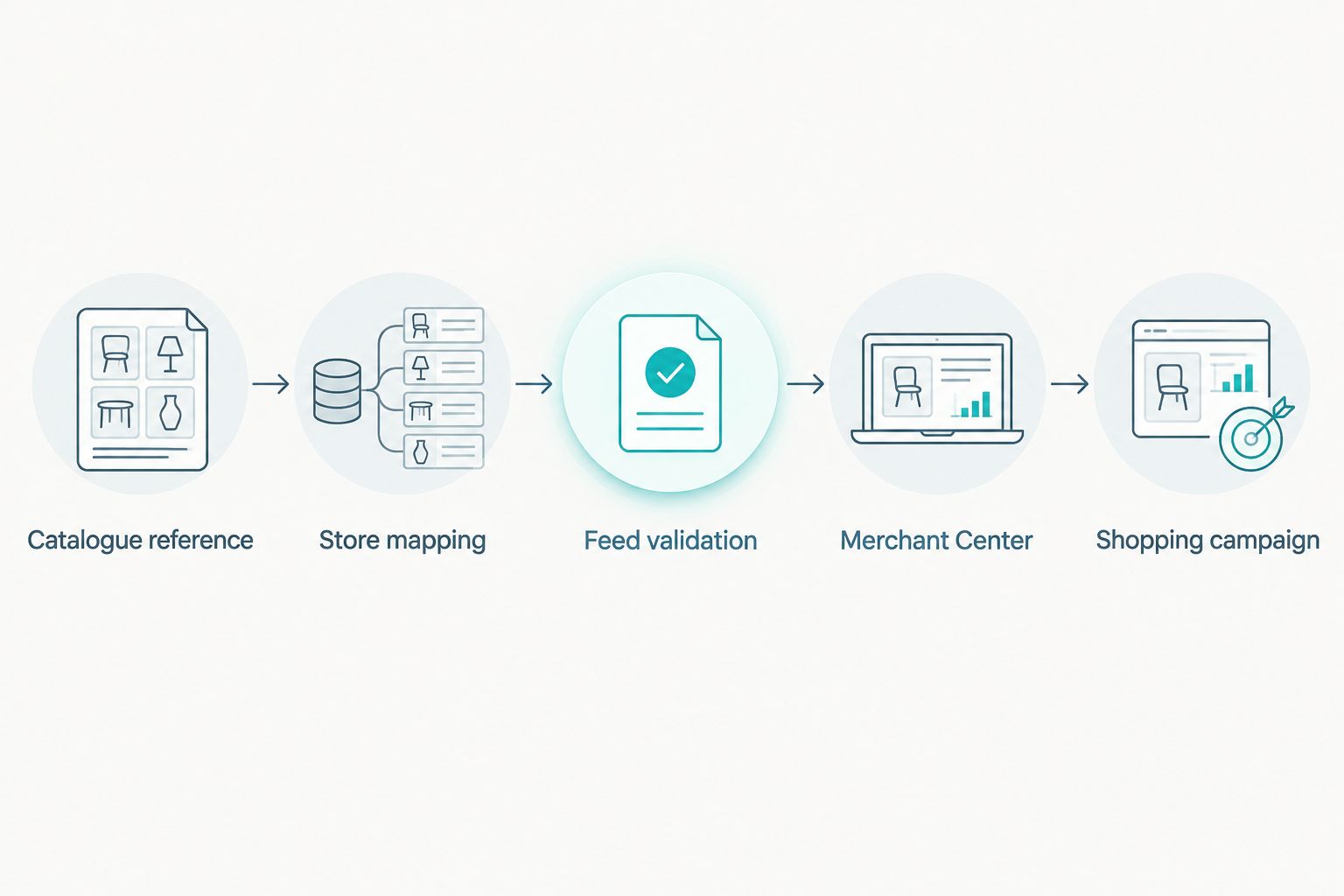
Keep a field-mapping document beside the feed. For each attribute, record its source, transformation and validation rule so another person can maintain the setup without reverse-engineering it.
Merchant Center website and data-source configuration
Verify the destination and submit products
- Complete your business details in Google Merchant Center. Verify and claim the website that contains the product destinations, following the verification method offered in your account.
- Configure delivery and returns information using your actual store arrangements. Feed submission does not replace those account requirements.
- Open Data sources and select Add product source. Choose the file or spreadsheet method that matches your prepared output.
- Set the intended country and language for the submitted products. For a South African campaign, align the feed, destination and checkout currency with that market.
- Submit the source, then inspect the processed products under Products. Use Needs attention to identify product or account issues before enabling ads.
Expected result: Merchant Center has processed the source, the website is claimed, and you can inspect eligibility and specific issues for the submitted products.
Do not equate a successful file submission with approval. A file can load correctly while individual items fail product-data checks or the account still has unresolved requirements.
Check a representative set of variants directly against their destination pages. Include products with different sizes, colours and identifiers so you test the mapping logic rather than repeatedly inspecting the same simple product type.
Set a dependable retrieval process
For a generated file, configure scheduled retrieval through the data-source settings offered in your account. Make the generated output retrievable without exposing source credentials, and keep it separate from working files containing private business information.
Publish only after validation succeeds. Write a complete replacement file rather than letting Google retrieve a partly written output, and record the result of each generation and retrieval attempt.
Expected result: Feed refreshes use complete, validated output, and a failed update creates an alert rather than silently passing as a successful sync.
Google Ads linking and campaign configuration
Connect the approved catalogue to ads
- Link the intended Google Ads account through Merchant Center’s account-linking settings. Complete any approval requested in the receiving account.
- Confirm that the correct Merchant Center account is available in Google Ads. Do not assume access to one account automatically grants access to another.
- Open Campaigns, select New campaign, then choose Sales and Shopping. Select Standard Shopping for this product-focused workflow.
- Select the intended Merchant Center account and eligible product scope. Configure the campaign’s location targeting for the market served by your store.
- Set the campaign budget and bidding approach to match your measurement readiness. Restrict the initial product group to the records you have checked.
- Test the purchase conversion before launch. Check the transaction identifier, currency and recorded order value, and confirm that a purchase is not counted twice.
Expected result: Your Shopping campaign uses the intended Merchant Center products and a tested purchase conversion, rather than clicks alone as evidence of success.
For the 2026 launch, keep the initial scope deliberately narrow. A valid catalogue does not prove that every product has the same commercial value or that every destination converts effectively.
ReachDigital’s paid media services fit the campaign-management layer. The limitation is clear: agency management does not remove website verification, fix missing manufacturer identifiers by itself or make an untracked checkout measurable.
Update the feed whenever product records change
The adjacent workflow is ongoing catalogue maintenance. Instead of rebuilding the mapping after every edit, regenerate the feed from the same approved rules whenever your store’s relevant product records change.
- Detect changes in the system that owns the store’s product data. Keep marketplace catalogue changes as review inputs unless they have been validated for your store.
- Rebuild the affected records while preserving existing product IDs. Refresh descriptive fields only after confirming that the item remains the same product.
- Validate the replacement output before publishing it. Flag unexpected destination-domain changes, missing identifiers and broken image references.
- Publish the completed file and inspect Merchant Center’s processing result. Where changes require quicker submission than scheduled retrieval provides, use a supported update method for your chosen source.
Expected result: Changes update existing records without creating avoidable duplicate products or replacing verified store data with marketplace assumptions.
For a 2026 maintenance routine, assign a named owner to feed alerts and a separate owner to campaign decisions. Technical success and advertising success are different checks; both need someone accountable.
Troubleshooting
Website verification blocks submission
Your product destinations point to a domain you cannot claim. Replace marketplace destinations with matching pages on your verified store; if you have no such store, use an appropriate marketplace advertising route instead of forcing this setup.
GTINs fail validation
The feed contains marketplace references, altered spreadsheet values or identifiers for a different variant. Recover the manufacturer identifier, preserve it as text and check it against the exact item. Do not use identifier_exists to conceal identifiers that genuinely exist.
The wrong variant opens
Your destination resolves to a default product selection rather than the advertised variant. Correct the variant destination and check that the selected item matches its title, image and submitted attributes.
Feed data does not match the destination
Different systems own overlapping commercial fields, or an old output is still being retrieved. Trace the field to its source, correct the store-to-feed mapping and confirm that Merchant Center processed the replacement output.
Ads run but purchases are unreliable
A tag firing is not proof of correct measurement. Complete a controlled checkout test, inspect the purchase event and remove duplicate primary conversion actions before judging campaign performance.
Customize your workflow
Once the core mapping works, add internal product groupings through supported custom labels. Group products by meaningful business criteria, then use those groupings to control campaign scope and reporting without changing product identity.
Expand the integration before expanding spend. Add alerts for failed generation, failed retrieval and product disapprovals; then connect advertising analysis to your wider marketing automation for e-commerce brands in South Africa.
Keep the limits visible. A feed handles product information; it does not replace strong product pages, clear checkout journeys or properly configured measurement. Fix those dependencies before treating more catalogue coverage as progress.
FAQ
Can I turn my Takealot catalogue into a Google Shopping feed?
Yes, you can reuse authorised catalogue information after mapping it to products on your own verified and claimed website. The resulting feed must match your store’s product destinations and checkout data.
Can my Google Shopping ads link directly to my Takealot listings?
Ordinary Takealot seller access does not let you verify and claim Takealot’s domain for this merchant-account workflow. Use product destinations on a website you control, or investigate Takealot’s own advertising route.
Do I need Google Merchant Center as well as Google Ads?
Yes, this Shopping workflow uses Merchant Center for product data and Google Ads for the advertising campaign. Link the intended accounts and resolve product eligibility issues before launch.
Is a Takealot product reference the same as a GTIN?
No, a marketplace reference is not automatically a manufacturer-assigned GTIN. Use the identifier for the exact product and variant, and preserve its formatting during export.
Should I use a spreadsheet or an automated feed file?
Use a reviewed spreadsheet to prove the product mapping, then use a generated feed file for repeatable updates. Automation needs validation, monitoring and someone responsible for failures.
How do I stop duplicate products after a feed update?
Preserve the same feed ID for each existing product variant across updates. Fix the mapping instead of generating a new identifier whenever descriptive fields change.
Can ReachDigital help with the advertising side?
ReachDigital provides paid digital media and digital campaign development services for e-commerce brands. Product-data access, website control and account permissions remain prerequisites for this workflow.
One last thing
A successful upload is not the finish line: a correctly matched, eligible product with a measurable checkout is. Save the mapping rules, source ownership and conversion test results together so the next catalogue update does not undo the setup.
Before adding more products, repeat the destination check on a changed variant. That small check catches the difference between a feed that merely contains records and a feed that advertises the right item.
Related guides
- How to run Takealot advertising for an e-commerce brand in SA
- How to use Google Ads to grow an e-commerce brand in SA
- How to run paid media for an e-commerce brand in South Africa