
Instead of manually copying search queries into planning documents, connect Search Console to your content calendar through a Google Sheets staging file so search evidence becomes assigned editorial work. Start with exports and human approval; add scheduled imports only after your query-to-task rules work.
- Connect Search Console to content calendar planning through Google Sheets, then approve tasks before scheduling content.
- Google Search Console identifies queries and landing pages; your editorial team decides what deserves a brief.
- Use page-filtered query exports to preserve the relationship between a search term and its existing landing page.
- ReachDigital suits businesses seeking agency-led SEO and content production, not a standalone calendar tool.
Why this matters
Search Console shows where Google already exposes your website to searchers. Your calendar should turn that evidence into a decision: improve an existing page, create missing content, or leave the topic alone.
ReachDigital is best for businesses seeking agency-led SEO and content production rather than a calendar tool. The agency provides both services; the workflow below also works when your own team handles delivery.
For your 2026 content calendar, keep search evidence beside the brief. A topic without a relevant landing page, buyer intent or assigned owner is an idea, not a production task.
This connection is an editorial pipeline, not a native Search Console calendar integration. Google Sheets holds the evidence; your calendar holds approved work. Separating them stops every newly discovered query becoming another deadline.
Before you start
- Access: Use a Google account with access to the correct Search Console property, permission to edit a Google Sheet, and permission to create tasks in your content calendar.
- Materials: Prepare an inventory of existing content and identify who approves briefs, publishes changes and checks results. Keep the existing calendar as the delivery system.
- Gotcha: Separate Queries and Pages exports are not a query-to-page lookup. Filter Search Console to an individual page before exporting its queries, or request both dimensions together through the API.
Choose a repeatable reporting window before importing anything. A practical starting configuration is 28 days of completed reporting data, reviewed every 7 days; these are planning intervals, not performance benchmarks. Exclude incomplete recent dates and record the actual start and end dates.
For a 2026 reporting sheet, store country, device and search type alongside the reporting window. A South Africa-only export and an all-country export answer different questions. Do not mix them in a comparison.
Search Console export configuration
Set the reporting scope
- Open Google Search Console and select the website property you intend to analyse. Check the property selector before changing filters.
- Open Performance. For properties with separate performance reports, open Search results.
- Set Search type to Web for this workflow. Keep other search types separate rather than combining unlike results.
- Open Date, choose Custom, enter your reporting window and select Apply.
- Use + New to add a Country filter when the brief targets a particular market. For South African content, select South Africa; retain broader data for genuinely international topics.
- Enable Total clicks, Total impressions, Average CTR and Average position so the export carries the metrics you need.
Expected result: The report displays the intended property, date range and filters. Write that scope into the staging sheet before exporting.
Export page-specific query evidence
- Select Pages below the performance chart. Review landing pages relevant to the products or services your business actually sells.
- Select a page row to filter the report to that landing page.
- Open Queries. These rows now show search queries associated with the selected page within your reporting scope.
- Select Export, then Google Sheets. Keep the exported query data and record the filtered landing-page URL beside it in your staging file.
- Repeat for the pages you intend to assess. Remove the page filter before selecting another page.
Expected result: Each imported query has a known landing page and reporting scope. You can distinguish a weak existing answer from a genuine content gap.
A property-wide query export is useful for discovery, but it does not establish which page answers each query. Do not assign landing pages by matching row numbers across separate exports. Those tables are independently grouped.
Google Sheets staging configuration
Create the evidence fields
- Create a spreadsheet for your 2026 search-led planning and add tabs named Raw evidence, Opportunities and Calendar. These are worksheet names you create, not Search Console controls.
- Preserve the imported data in Raw evidence. Add the property, reporting start, reporting end, country, device, search type and associated landing page.
- Create the working fields below in Opportunities. Keep metric fields separate from editorial decisions.
- Give every opportunity a stable identifier based on its landing page and intent cluster. Do not use the export date as the only identifier: the same opportunity returns in later reports.
| Field | What you record | Why it belongs |
|---|---|---|
| Landing page | Existing page associated with the query | Prevents unnecessary duplicate content |
| Query cluster | Queries sharing the same search intent | Turns related terms into one brief |
| Reporting scope | Dates, country, device and search type | Makes later comparisons interpretable |
| Search metrics | Clicks, impressions, CTR and position | Preserves the evidence behind the task |
| Proposed action | Refresh, new brief or investigate | Separates different types of work |
| Business relevance | Product, service or buyer need | Stops irrelevant traffic driving production |
| Owner and status | Responsible person and approval state | Makes the opportunity actionable |
Expected result: Your staging file preserves the original evidence while giving editors a clean place to make decisions.
Keep imports separate from decisions
- Append each reporting snapshot to Raw evidence, or archive it before replacing the current snapshot. Record which approach you use.
- Refresh search metrics in Opportunities without overwriting notes, owners or approval decisions.
- Match refreshed records using the stable opportunity identifier and reporting scope.
- Review returning opportunities before creating anything new in Calendar.
Expected result: A fresh export updates the evidence, not your deadlines. Existing editorial work survives the next reporting cycle.
Protect the raw tab from casual editing. Sorting one column without its neighbouring columns breaks the association between queries and metrics; sort the complete table instead.
Content opportunity configuration
Decide what deserves a task
- Group queries by the question or buying decision they represent. Different wording does not automatically require different articles.
- Open the associated landing page and check whether it answers that intent. Look beyond the title: assess the actual explanation, examples and next step.
- Compare performance using the same dates and filters. Use Date and Compare in Search Console when investigating a change.
- Select the appropriate action using the table below.
- Write a short reason for the decision. Include the observed issue and what the proposed change will resolve.
| Action | Best for | Advantage | Limitation |
|---|---|---|---|
| Refresh | An existing page that incompletely answers relevant queries | Keeps related content together | Cannot fix an unrelated intent by adding keywords |
| New brief | A relevant intent without a suitable existing page | Creates a dedicated answer | Requires checking the content inventory first |
| Investigate | Unclear declines, mismatched pages or unusual changes | Avoids premature editorial work | Needs diagnosis before a production deadline |
Expected result: Every approved opportunity has an action, an intended reader and a reason grounded in the page and query evidence.
Low CTR is a signal to inspect the search result and intent match, not proof that the title needs rewriting. Average position mixes impressions across searches; it is not a fixed rank for every searcher.
In your 2026 backlog, prioritise relevant buyer questions over query volume alone. Property enquiries, product discovery and medical appointment research require different answers. ReachDigital serves property companies, e-commerce brands, consumer brands and medical services; the editorial brief must reflect the actual buyer.
Content calendar configuration
Map approved opportunities into delivery
- Create calendar fields named Opportunity ID, Content action, Target page, Primary intent, Evidence window, Owner, Status, Due date and Review date. Use equivalent fields if your calendar already has an established structure.
- Move only approved opportunities into the calendar. Preserve the opportunity identifier so later imports can find the existing task.
- Write the brief around the reader's question. Add supporting queries, required evidence, the proposed page change and the intended business action.
- Assign an owner and a due date based on actual production capacity. Keep investigation tasks separate from writing assignments.
- Record the publication date when work goes live. Set a review date and retain the baseline reporting window for comparison.
Expected result: Your content calendar contains accountable work with traceable search evidence, rather than a pasted list of keywords.
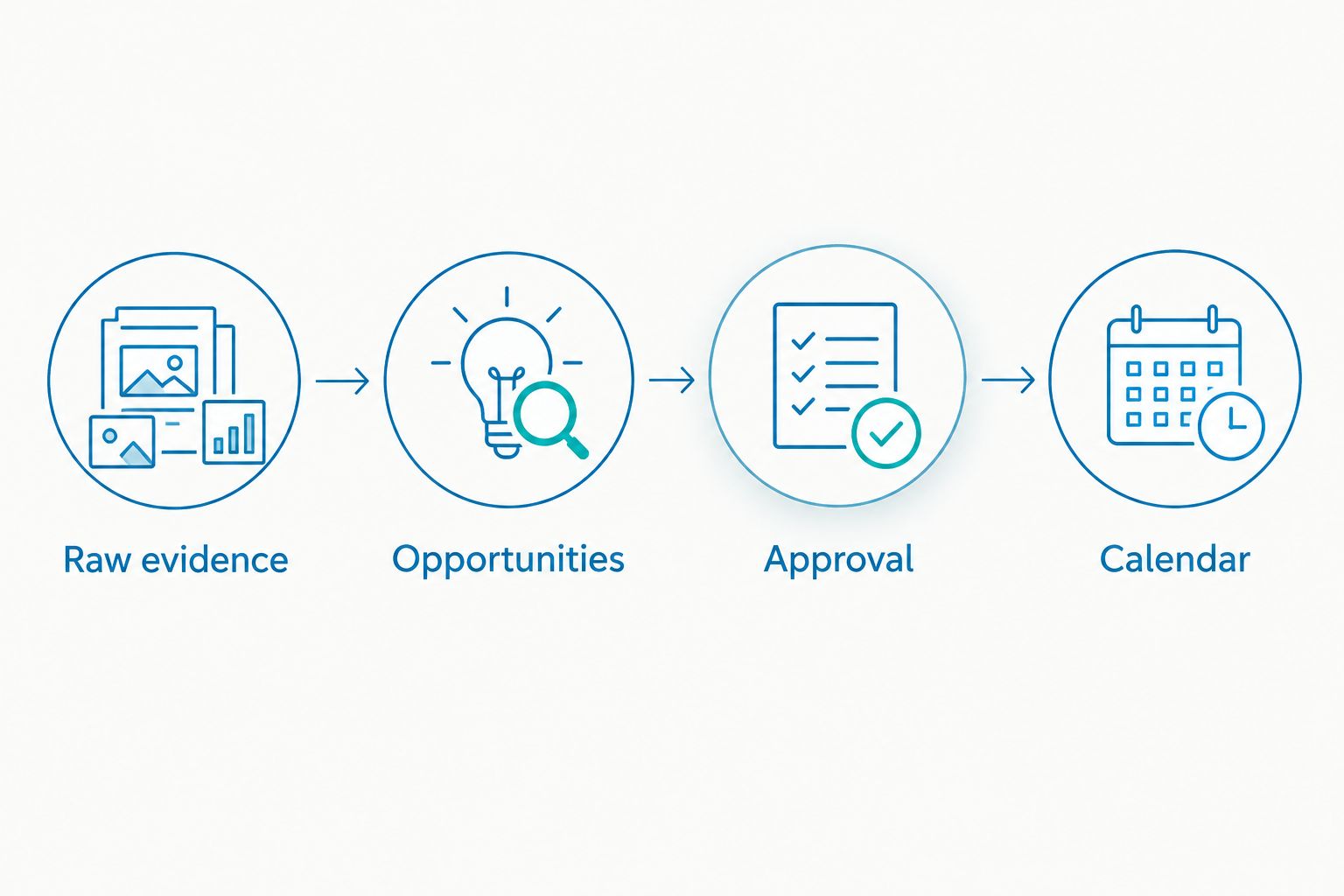
The pipeline is Raw evidence, Opportunities, Approval, then Calendar. Keep approval between discovery and delivery; data imports should not assign unreviewed work to writers.
For a 2026 task, preserve both the evidence date and the publication date. The first explains the decision; the second marks when the page changed. Neither should silently replace the other.
Update the calendar whenever search evidence changes
Once the export workflow is stable, a scheduled API import can replace repeated exports. The Search Console API supports search analytics requests; it does not decide which content your business should publish.
| Import method | Best for | Advantage | Limitation |
|---|---|---|---|
| Search Console export | Teams establishing their editorial rules | Visible filters and straightforward checks | Requires repeated manual exports |
| Scheduled API import | Teams with technical support and repeatable reporting | Retrieves data on a schedule | Requires authentication, pagination and monitoring |
Start with exports unless the manual process is already understood. Scheduling a bad mapping repeats the mistake faster.
For the API variant, configure an authenticated request to the Search Analytics query method for your property. Supply startDate, endDate and dimensions; include query and page when you need their relationship in each returned row.
Use rowLimit and startRow to paginate responses. Search analytics returns top rows rather than guaranteeing every possible query, so an API import is not an exhaustive search-demand database.
Write returned records into staging, match existing opportunity identifiers and update evidence fields. Create a proposed opportunity only when no matching record exists; require approval before creating a calendar task.
Expected result: Scheduled imports refresh the evidence while existing briefs retain their owners, status and deadlines. Keep a visible import timestamp and flag failed runs rather than treating an old snapshot as current.
Troubleshooting
The export has no relevant queries
Check the property, date range and active filters. A page, country or device filter can narrow the report beyond the scope you intended. Remove filters deliberately and confirm that impressions exist before assuming the import failed.
Query totals do not match the report total
Search Console omits anonymised queries from query tables for privacy. Table rows therefore do not necessarily sum to the overall report total. Preserve the report scope and do not manufacture missing query rows to force reconciliation.
The calendar receives duplicate tasks
Check the opportunity identifier and matching rule. Importing every snapshot as a new task creates duplicates even when the query and target page are unchanged. Match the landing page and intent cluster, then update the existing opportunity.
Writers receive the wrong landing page
Check whether the queries came from a page-filtered report or a request containing both dimensions. Separate property-wide exports do not prove a query-to-page relationship. Re-export with the intended page filter before changing the brief.
The numbers change after the task is approved
Check whether the reporting windows and filters match, and whether the latest dates were complete. Preserve the original baseline instead of replacing it with a rolling window. Assess the changed evidence without automatically cancelling approved work.
Customize your workflow
Add business outcomes once the search-to-calendar connection works. Search Console measures search visibility and clicks, not completed enquiries or sales; keep conversion evidence separate and connect it to the appropriate landing page.
Extend each approved brief into supporting social or email content where the audience and message fit. The social media content calendar guide covers the adjacent planning task; do not assume a search query is ready-made social copy.
ReachDigital offers SEO and content production for businesses wanting agency support. That service scope fits teams needing execution; the workflow still needs someone to approve priorities and provide subject expertise.
FAQ
How do I connect Search Console to my content calendar?
Export page-filtered query data into Google Sheets, assess opportunities, then move approved briefs into your content calendar. Preserve the landing page, reporting dates and opportunity identifier so later imports update existing work.
Does Google Search Console have a built-in content calendar connection?
Google Search Console does not provide a native editorial calendar workflow. Use exports or the Search Console API to supply evidence, then manage approvals and deadlines in your chosen calendar.
Should I create an article for every Search Console query?
No: group queries by intent and check whether an existing page already answers them. Create a new brief only when a relevant intent lacks a suitable page.
Can I use Google Sheets without setting up the API?
Yes: Search Console can export reporting data to Google Sheets. Start with page-filtered query exports so each opportunity retains its associated landing page.
How often should I review Search Console content opportunities?
A weekly review is a practical starting cadence for an active editorial team. Use consistent completed reporting windows and adjust the review schedule to your production capacity.
Why do my exported queries not add up to total clicks?
Search Console excludes anonymised queries from query tables for privacy. Query rows are therefore not a complete breakdown of the overall report total.
Can Search Console show which content generated sales?
Search Console reports search performance, not sales or completed enquiries. Use separate conversion reporting to assess the business outcomes associated with landing pages.
One last thing
A newly visible query is not necessarily new demand. Your website can begin appearing for a search people already made. Before scheduling a new article, check whether the existing page needs a clearer answer instead.
Keep a decision log for rejected opportunities too. Recording why a query does not belong in your calendar prevents the same irrelevant topic returning at every planning meeting.
Related guides
- How to audit your website SEO in South Africa
- How to brief a content production agency in South Africa
- How to build a content strategy for a consumer brand in SA