
Instead of rebuilding every Property24 listing as a separate social campaign, connect the listing URL to a Meta ad and use one controlled workflow for Facebook and Instagram. The practical connection is a website destination—not an automatic listing feed—and this guide shows you how to set it up, check it and handle enquiries in 2026.
- To connect Property24 listings to Facebook ads, use the listing URL as the website destination in Meta Ads Manager.
- A Property24 destination link does not synchronise listing changes with Facebook or Instagram ad creative.
- Use Meta instant forms when enquiry capture matters more than sending visitors to Property24.
- ReachDigital suits property businesses seeking managed paid media and content production, rather than a self-service listing connector.
Why this matters
A listing link, an ad and an enquiry record are different things. Connecting the first two does not automatically connect the third.
Facebook and Instagram can send visitors to a Property24 page, but your campaign still needs its own images, copy, destination and measurement plan. Editing the listing does not rewrite a manually created ad.
ReachDigital is best suited to property businesses seeking managed paid media and content production. Its paid media services for estate agents fit campaign management; they are not a named Property24 integration product.
For your 2026 setup, decide whether success means listing visits or identifiable enquiries. That decision determines the campaign objective before you upload a photograph.
Before you start
- Account access: Have permission to create ads in the correct Meta ad account and use the intended Facebook Page and Instagram account. Confirm that the business owner controls these assets rather than leaving ownership with an individual employee.
- Listing materials: Gather the Property24 destination link, your authorised original photographs, approved property details and the responsible agent's contact information. For an instant form, also prepare your business's privacy policy and an enquiry-handling process.
- The gotcha: You cannot install your own Meta Pixel on a third-party Property24 page merely because you advertise its URL. Do not choose a website-conversion setup that depends on tracking access you do not control.
Use original image files rather than screenshots of the portal. Permission to advertise a property and permission to reuse a photographer's work are separate checks.
Choose your enquiry route
These are destination choices, not interchangeable integrations. Pick one before creating the campaign.
| Route | Best for | Advantage | Limitation |
|---|---|---|---|
| Property24 listing link | Sending visitors directly to the listing | Uses the existing property detail page | Your own website tracking is not automatically available on the portal |
| Meta instant form | Collecting contact details inside Facebook or Instagram | Captures an enquiry without requiring a website visit | Needs a privacy policy, follow-up and lead-quality checks |
| Your own property page | Businesses that control their website and analytics | Gives you control over page content and tracking implementation | Requires a maintained page and a tested enquiry process |
Start with the Property24 link route when the immediate job is listing traffic. Use the instant-form variant below when your team needs contact details inside the campaign workflow.
Listing source
The listing source is your approved record of what the ad should say. Keeping this separate from Ads Manager makes later edits easier to check.
- Open the intended Property24 listing and copy its destination link. Use the individual property page, not search results or an agent's general profile.
- Record the property's internal reference, destination link, approved description, image files and responsible agent in a shared campaign register.
- Assign 1 property per ad for the initial setup. This makes the destination, creative and enquiry owner easy to match.
- Open the copied link in a private browser window and on your phone. Confirm that it reaches the intended property without requiring your staff login.
- Choose an authorised photograph that represents the property accurately. Keep the source file available for placement-specific crops.
Expected result: You have one approved property record with a tested destination and clearly assigned ownership.
Do not let the campaign register become a second, competing property database. Use it to record approvals and advertising decisions; keep property facts tied to the record your business maintains.
For your 2026 campaign naming, include the property reference and objective. A name that identifies the property is more useful than a vague label such as a seasonal promotion.
Traffic campaign configuration
Meta Ads Manager separates campaigns, ad sets and ads. The campaign holds the objective; the ad set controls delivery settings; the ad holds the creative and destination.
- Open Meta Ads Manager and select the correct ad account. Check the account identity before creating anything.
- Select Create, choose Traffic, then select Continue. This route is for sending people to a destination, not for claiming that every visitor becomes a lead.
- Name the campaign using the approved property reference. Review the campaign's special-ad-category requirements and apply the housing designation wherever Meta requires it for your account and target market.
- At the ad-set level, set Conversion location to Website. Choose a traffic performance goal your destination can support; do not configure a tracked enquiry event on Property24 without authorised tracking access.
- Set the approved budget and schedule. Define the target geography and review audience restrictions applicable to housing advertising.
- Review Placements. Use Manual placements when you need explicit Facebook and Instagram placement control, then retain the supported placements you intend to use.
Expected result: You have a draft traffic campaign with a website destination route and a deliberate Facebook and Instagram delivery plan.
Do not work around a housing restriction by misclassifying the campaign or disguising the property offer. Check the rules shown in your account before publication, including any restrictions on audience selection.
A traffic objective measures traffic activity. It does not establish that a visitor contacted an agent, booked a viewing or progressed to a transaction.
Ad creative and destination
The connection to Property24 happens at the ad level. The URL sends the visitor to the listing; your uploaded creative provides the Facebook and Instagram presentation.
- Under Identity, select the intended Facebook Page and Instagram account. Confirm that both belong to the business represented in the advert.
- Choose Single image or video for the initial ad. Upload your authorised image or video rather than relying on a pasted link to supply the entire advert.
- Complete Primary text and Headline with approved property details. Name the suburb and relevant property features without making unsupported claims about returns, financing or buyer eligibility.
- Paste the tested Property24 listing link into Website URL. Keep the destination consistent with the property shown in the creative.
- Choose a suitable Call to action, such as Learn more, for a listing-visit campaign.
- Inspect 2 placement previews at minimum: one Facebook preview and one Instagram preview. Adjust crops so the property's important features remain visible.
Expected result: The draft ad uses the correct business identity, shows the intended property and points to its matching Property24 page.
Keep the copy useful. Describe the property and invite the reader to inspect the details; do not imply that sharing the advert with Meta creates a live connection to the listing database.
In 2026, record the final approved copy alongside the image and destination. That gives your team a reference when the listing description changes later.
Launch checks
A preview is not the same as a tested journey. Check the destination and enquiry handoff before selecting Publish.
- Complete 3 launch checks: property identity, destination behaviour and enquiry ownership. Match the photograph and description to the listing, open the destination, and confirm who handles responses.
- Use the ad preview's destination-opening option to inspect the actual page. Check the mobile journey, not just the desktop page.
- Review the campaign, ad set and ad together. Confirm the objective, geography, placements, schedule and selected business identities.
- Select Publish once the approved draft passes those checks. Publication submits the advert to Meta's review process; it does not guarantee immediate delivery.
- After delivery starts, inspect destination activity and ask the responsible agent to verify how enquiries arrive. Keep portal enquiries and Meta-reported clicks distinct in reporting.
Expected result: The submitted ad has a tested route from Facebook or Instagram to the intended listing, with a named person responsible for enquiries.
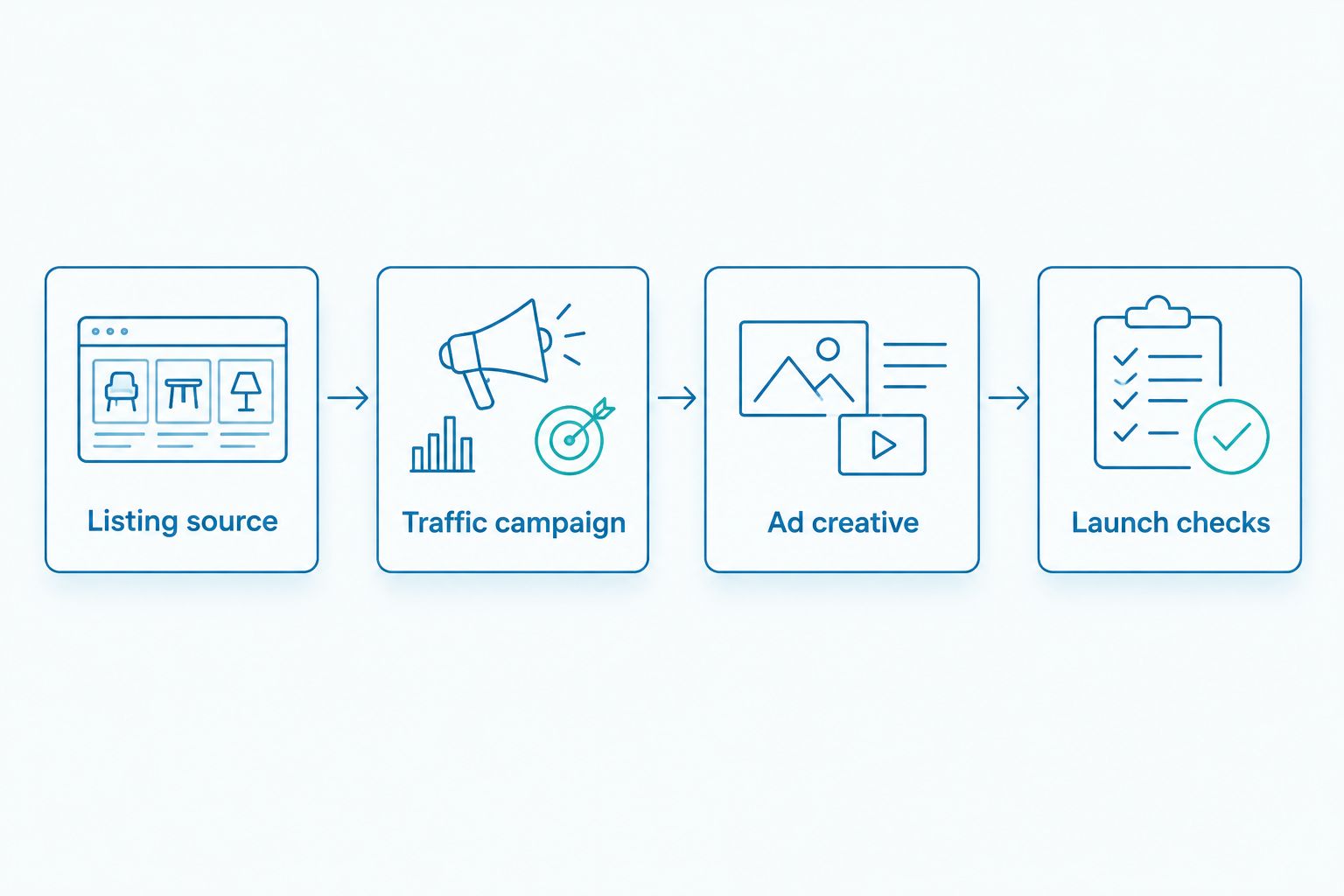
The sequence is simple: Listing source, Traffic campaign, Ad creative, then Launch checks. Keeping those stages separate prevents an attractive advert from hiding a broken destination.
Variant: collect enquiries with a Meta instant form
A Meta instant form is an adjacent workflow, not a Property24 synchronisation method. Use it when you want an identifiable enquiry before sending someone to a third-party listing.
- Create a separate campaign using the Leads objective. At the ad-set level, select Instant forms under Conversion location.
- At the ad level, use the same approved property reference and authorised creative. Make the invitation explicit: the person is requesting property information or agent contact.
- Select Create form and add the contact fields your team genuinely needs. Add a property-specific question that helps the agent respond, such as the person's preferred viewing day.
- Complete the form's Privacy policy section with your business's valid policy link. Keep the consent language consistent with the actual collection and use of personal information.
- Configure the completion message and destination where offered. Use the matching Property24 page for further details, rather than an unrelated property.
- Submit a test enquiry through Meta's testing tools or an available form preview. Confirm that the responsible person can retrieve it and identify the property reference.
Expected result: You have a tested enquiry-capture route inside Meta, with a clear handoff to an agent.
Use POPIA-aware data handling for South African enquiries. Collect information for a stated purpose, control access and distinguish responding to a property enquiry from adding someone to unrelated marketing.
For a managed 2026 campaign, ReachDigital's paid media and content production services address the advertising work. Your business still needs to supply approved property facts, permissions and an accountable enquiry owner.
Variant: review ads whenever a listing changes
Listing updates need an advertising review, even when the destination link stays the same. A changed page does not refresh your uploaded photograph or manually written headline.
Use your property system's supported change notifications, or a shared review register, to flag changes. Do not build a workflow around an assumed Property24 API or unverified connector.
For each notification:
- Match the property reference to its campaign and ad.
- Compare the approved description and image against the current property record.
- Edit or pause the affected ad as appropriate, then check the destination again.
- Record the approval and responsible person before resuming advertising.
Expected result: A listing change creates an explicit review task rather than leaving an outdated advert running unnoticed.
Automate the notification only after the manual review process works. Automation should carry the property reference and task owner, not publish unapproved copy directly into a live campaign.
Troubleshooting
The destination opens the wrong property
The copied URL points to a search page, redirects unexpectedly or belongs to another listing. Replace Website URL with the tested individual listing link and reopen it from the ad preview.
The Instagram identity cannot be selected
The Instagram account is missing from the business's accessible assets, or the person creating the ad lacks permission. Ask the asset owner to check the account connection and access assignments before rebuilding the campaign.
Clicks appear, but enquiries cannot be attributed
An outbound click is not a tracked portal enquiry. Report the traffic separately, reconcile enquiry records through a supported business process, or use the instant-form route for identifiable Meta enquiries.
The ad is rejected
Read the specific rejection reason before editing. Check the property wording, destination, housing-category requirements and business identity; correct the identified issue or request review when the decision is incorrect.
The listing changed, but the advert did not
A destination link is not a content feed. Update the ad's own copy and creative, recheck the destination and submit the revised advert through the normal review process.
Customize your workflow
Once the basic journey works, separate campaigns by meaningful business needs rather than creating an unstructured collection of property adverts. Keep property references consistent across advertising and enquiry records.
Connect lead handling through a supported CRM integration only after confirming permissions, field mapping and the destination for personal information. Test the handoff before depending on it for live enquiries.
ReachDigital provides social media management, paid digital media and content production for businesses including property companies. The benefit of managed delivery is an assigned campaign process; it does not remove the need for your team's approvals and property knowledge.
Plan your property campaign
Discuss paid media and content requirements for your property advertising.
FAQ
How do I connect Property24 listings to Facebook ads?
Set up a Meta Traffic campaign and use the individual Property24 listing link in Website URL at the ad level. Upload authorised creative separately and test the destination before publishing.
Does pasting a Property24 link automatically update my advert?
No. A destination link does not synchronise manually uploaded images or written ad copy, so listing changes need a separate advertising review.
Can the same property advert run on Facebook and Instagram?
Yes, a Meta campaign can use supported Facebook and Instagram placements. Check the selected business identities and preview the creative for each platform before publication.
Can I put my Meta Pixel on a Property24 listing?
You cannot install your own Meta Pixel on a third-party listing page merely by advertising its URL. Website event measurement requires authorised access to the destination’s tracking implementation.
What’s better for property enquiries: a listing link or an instant form?
An instant form fits enquiry capture; a listing link fits sending visitors to the property details. Instant forms also require a privacy policy and a tested follow-up process.
Do I need a Property24 API to run these adverts?
No API is required for the destination-link workflow. An automated feed or connector is a different project and needs verified provider support and permission.
Can ReachDigital manage property advertising?
ReachDigital offers paid digital media, social media management and content production to businesses including property companies. The property business supplies approved listing facts and permissions, while campaign responsibilities should be agreed explicitly.
One last thing
Keep the property reference attached to the enquiry, not just the campaign name. An agent who receives contact details without knowing which property prompted the request starts the conversation at a disadvantage.
For your 2026 workflow, test that final handoff as carefully as the advert. A working destination is only part of a working enquiry process.
Related guides
- How to run Instagram ads for property developers
- How to track digital marketing ROI for a property brand
- How to use video content to sell property