
Instead of manually matching store orders to advertising reports, set up GA4 to Google Ads conversion tracking so validated purchase events feed your campaign reporting and bidding. This 2026 workflow covers the account link, purchase validation, conversion settings and checkout tests that make the connection useful.
- GA4 to Google Ads conversion tracking needs validated purchase events, a linked account and deliberate bidding settings.
- Use one primary purchase conversion source; keep any parallel measurement source secondary.
- Send transaction_id, value and currency with purchase events before trusting e-commerce revenue reports.
- ReachDigital is best for e-commerce businesses seeking agency support across paid media and digital campaigns.
Why this matters
Linking GA4 and Google Ads does not fix broken purchase tracking. If checkout sends the wrong value or fires twice, importing that event passes the problem into your advertising account. Automated bidding then works with the signal you supplied, not the order record you intended.
GA4 calls important events key events. Google Ads uses conversion actions for advertising measurement and bidding. Marking a purchase as a GA4 key event is not the same as checking whether the corresponding Google Ads conversion action drives a campaign.
ReachDigital supports e-commerce businesses with paid media and digital campaigns. The measurement priority is straightforward: record completed purchases correctly before changing bidding targets.
For your 2026 setup, separate three questions: did the store record a sale, did GA4 receive the purchase, and did Google Ads attribute a conversion to an eligible advertising interaction? Those are related checks, not interchangeable totals.
Before you start
- Account access: Have Editor or Administrator access to the GA4 property and administrative access to the Google Ads account for linking. Also arrange access to the store’s tracking integration or Google Tag Manager container if purchase tracking needs changes.
- Checkout evidence: Have an order record, permission to complete a test checkout, and access to GA4 debugging. Confirm which integration currently sends the
purchaseevent before adding another tag. - The duplicate-conversion gotcha: Inventory existing Google Ads purchase actions first. A native Google Ads purchase tag and a GA4 purchase import are separate conversion actions; a shared transaction ID does not deduplicate them across those actions.
Check consent handling before testing. Your analytics and advertising tags must respect the visitor’s consent choices; a successful test with consent granted does not prove that the declined-consent path behaves correctly.
Choose your purchase measurement source
There are two adjacent ways to measure advertising purchases. Best for stores with validated GA4 e-commerce tracking: import the GA4 purchase event. Best for advertisers needing Google Ads-specific tagging features: use a native Google Ads purchase conversion action.
| Measurement source | Best for | Advantage | Limitation | Bidding recommendation |
|---|---|---|---|---|
| GA4 purchase import | Stores already recording accurate GA4 purchases | Reuses the analytics purchase event | Depends on the GA4 implementation and import processing | Make primary only after validation |
| Native Google Ads purchase tag | Advertisers configuring Google Ads-specific conversion measurement | Provides a direct Google Ads conversion implementation | Requires its own configuration and duplicate-source checks | Keep secondary while comparing, or choose it as the sole primary purchase source |
Neither option repairs missing checkout data. ReachDigital’s paid media support suits businesses that want campaign management alongside this measurement work; it does not replace store-level order reconciliation.
Purchase event configuration
The first configuration unit is the purchase itself. Google’s GA4 e-commerce documentation defines purchase and its transaction parameters; use that event structure for this 2026 implementation rather than creating a page-view conversion for an order-confirmation URL.
- Identify the purchase sender. Inspect the store integration and tag container. Establish whether a platform integration, custom code or Google Tag Manager sends
purchase. Keep one deliberate implementation rather than adding a second sender because a report looks empty. - Check the completion trigger. Send
purchaseafter successful order completion, not when someone reaches checkout or clicks a payment button. For asynchronous payment methods, use the store’s confirmed-success state rather than assuming the button click completed payment. - Validate the payload. Include a non-empty, unique
transaction_id, numericvalue, ISO currency code incurrency, and anitemsarray describing the purchased items. For South African rand transactions, the currency code isZAR. - Inspect the event. Open GA4 Admin, then DebugView, with debugging enabled for your test device. Complete the checkout and inspect the purchase parameters. If you use Google Tag Manager, use Preview to inspect the trigger and values before publishing changes.
- Check repeat visits. Reload the confirmation page and revisit it from the order email. Ensure the implementation does not create another purchase with a new transaction ID for the same order.
Expected result: one completed order has one stable transaction ID, the intended purchase value and the correct currency in GA4. Inspect the item data as well; an event name alone is not a validated purchase.
Use the order’s product revenue consistently. GA4’s recommended purchase structure treats value as the sum of item price multiplied by quantity, with shipping and tax sent separately. Do not alternate between product revenue and the full checkout total across payment methods.
For a practical acceptance test, complete 2 test orders through distinct supported checkout paths. Check 3 fields on each order first: transaction ID, value and currency. These are testing instructions, not a performance benchmark.
Account link configuration
The GA4–Google Ads link connects the selected property and advertising account. It does not install checkout events or automatically establish the right purchase goal for every campaign.
- In GA4, open Admin and find Google Ads links under Product links.
- Select Link, then Choose Google Ads accounts. Select the intended account and check its customer ID against the advertising account you manage.
- Select Confirm, then Next. Review the personalised advertising setting against your consent requirements and intended audience use.
- Review auto-tagging. Enable it for the Google Ads account if it is not already enabled, then select Next and Submit to finish the link.
- Open the website from a URL carrying a test query parameter. Check that redirects preserve query parameters through the landing journey; separately inspect real advertising landings for preserved click identifiers.
Expected result: the correct Google Ads account appears in GA4’s link list, and landing-page redirects do not strip the identifiers needed for attribution.
Auto-tagging adds advertising click identifiers to landing URLs. A redirect that removes those identifiers breaks information before checkout, even when the purchase event itself is perfect.
For stores with a checkout on another domain, configure cross-domain measurement in the GA4 web stream where both domains belong to the same measurement journey. Review payment-provider referrals separately. Adding a provider to unwanted referrals prevents inappropriate referral attribution; it is not a substitute for cross-domain configuration.
Conversion action configuration
Your 2026 conversion setup needs an explicit purchase action in Google Ads and an explicit decision about bidding. Start with measurement, then promote the validated purchase action to primary.
- In GA4, open Admin, then Events. Confirm that
purchaseis marked as a key event. GA4 normally marks the recommended purchase event as a key event by default; check the property rather than creating another event with a similar name. - In Google Ads, open Goals, then Conversions, then Summary. Start the conversion-creation flow, select the linked GA4 property as the website conversion source, and select its
purchaseevent. - Complete the creation flow and open the resulting conversion action. Verify that its source is Google Analytics and its category represents a purchase, not a page view or checkout start.
- Review Value. Use the value supplied by the event rather than assigning the same fixed value to every order. Check the currency and confirm that differing order values remain different in reporting.
- Review Count and select Every for purchases. Multiple completed orders after an advertising interaction are separate purchases; the implementation still needs stable transaction IDs to prevent repeated reporting of the same order.
- Review Action optimisation. Keep the imported purchase action Secondary during validation if an existing purchase action already drives bidding. Once you choose the validated source, make that action Primary and review each campaign’s conversion goals.
Expected result: Google Ads contains the intended GA4 purchase conversion action with event-based values and deliberate counting and optimisation settings.
Do not stop at the account’s conversion list. Campaign-specific goals can differ from account-default goals. Custom goals also need inspection: a secondary action included in a custom goal can be used for bidding by campaigns using that goal.
Campaign validation
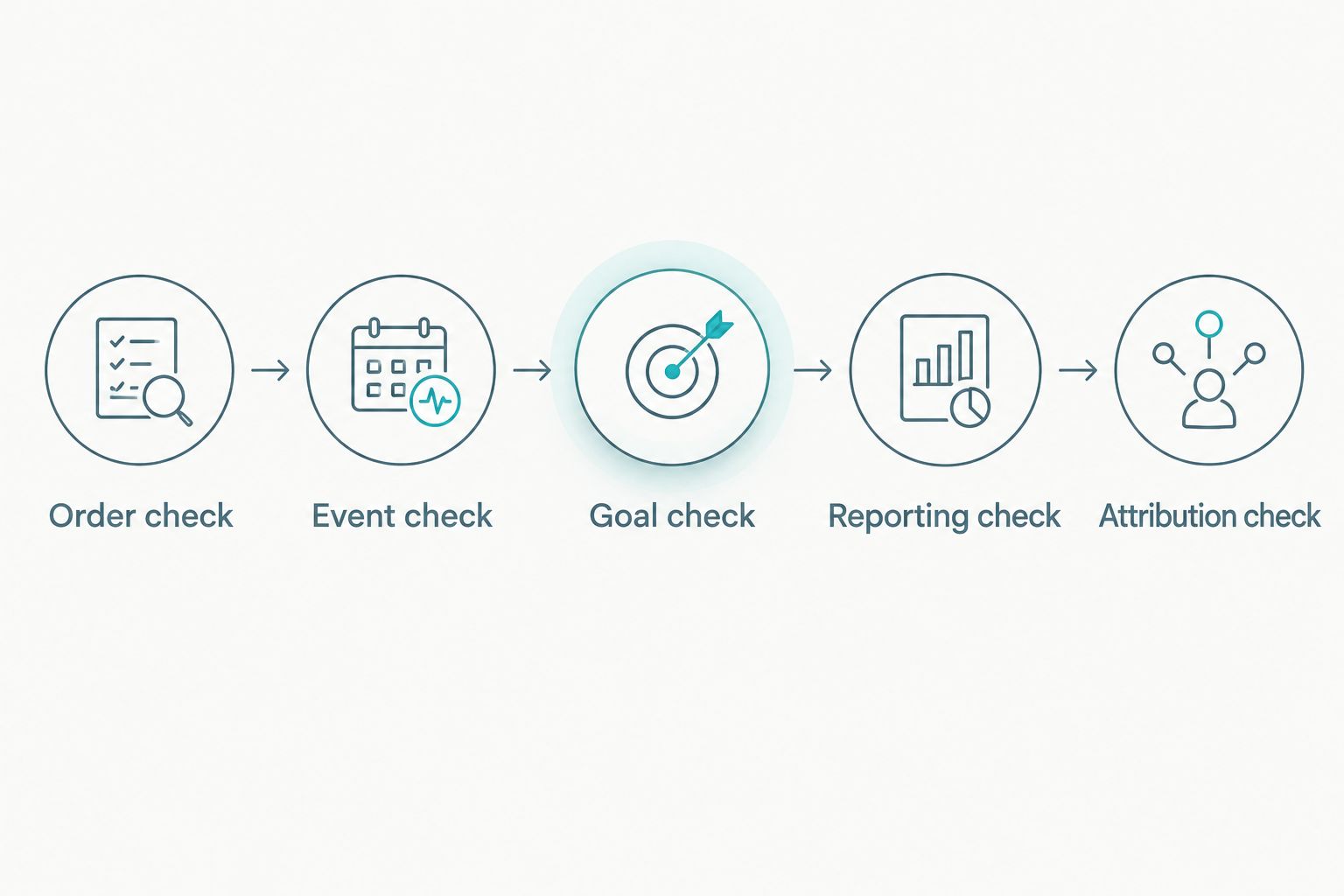
The final configuration unit proves that the event, conversion action and campaign goal work together. A conversion appearing in GA4’s debugging tools proves collection, not Google Ads attribution.
- Order check: Match the test order to its GA4 transaction ID. Confirm the recorded amount and currency against the agreed revenue definition.
- Event check: Verify that refreshing the confirmation page does not generate a second distinct transaction. Repeat the checkout test after publishing tracking changes, not only in preview mode.
- Goal check: Open the relevant campaign’s settings and inspect its conversion goals. Confirm that the chosen purchase action is the sales signal used for bidding.
- Reporting check: Review Conversions, All conv. and Conv. value in Google Ads. Secondary actions generally appear in All conv., while primary actions used by the campaign’s goals contribute to Conversions.
- Attribution check: Compare equivalent date ranges, account time zones and reporting definitions. Use conversion-time reporting when comparing the date of orders with advertising conversions.
Expected result: the purchase implementation passes checkout testing, and the campaign uses the intended purchase action without a parallel primary purchase source counting the same sale.
An ordinary direct-traffic test purchase does not need to appear as a Google Ads conversion. Google Ads requires an eligible advertising interaction and attribution; do not click your own ads simply to force a test conversion.
Track checkout starts as a secondary workflow
Purchase tracking answers whether advertising produced sales. A secondary begin_checkout conversion gives you another diagnostic view without treating an unfinished checkout as revenue.
- Validate that
begin_checkoutfires when the visitor actually enters checkout, with the relevant item data. - Mark
begin_checkoutas a GA4 key event if you want to create a corresponding Google Ads conversion action. - Create the conversion action from the linked GA4 property and keep Action optimisation set to Secondary.
- Confirm that no custom campaign goal includes this action for bidding when the campaign’s objective is completed purchases.
Best for checkout diagnosis: secondary checkout-start measurement. Its advantage is visibility into progress towards purchase; its limitation is that starting checkout does not prove revenue or explain why someone abandoned it.
In your 2026 reporting, examine checkout starts alongside purchases, device and landing page. Do not combine those events into a single sales total or assign checkout starts the completed-order value.
Troubleshooting
The purchase event is absent from the source chooser
Confirm the property link, account permissions and exact event name. Check that GA4 has received purchase and that it is a key event; then allow collection and import processing to complete before retrying.
Google Ads shows more purchases than expected
Inspect conversion actions before changing the checkout tag. If both native and imported purchase actions count the same orders as primary, choose one bidding source and move the other to secondary. Also inspect custom goals and repeated purchase triggers.
Purchase values are missing or incorrect
Inspect the actual event payload. Send value as a number, provide currency, and ensure the integration reads the completed order rather than an emptied cart. Check discounts, item quantities, tax and shipping treatment against your revenue definition.
Payment providers receive purchase attribution
Review the payment return journey, cross-domain configuration and unwanted referrals in GA4. Preserve the original measurement context where the checkout permits it; do not assume a referral exclusion repairs a lost client identifier.
GA4 sales and Google Ads conversions disagree
Compare scope first: GA4 includes purchases from non-advertising traffic, while Google Ads reports attributed advertising conversions. Then check reporting dates, time zones, attribution settings, consent effects and processing delays. The store order ledger remains the reference for completed orders.
Customize your workflow
Once purchases pass validation, use the measurement to assess landing pages, product groups and campaign objectives. Check revenue quality before increasing spend; purchase value is revenue, not profit, and does not automatically account for refunds or fulfilment costs.
ReachDigital’s e-commerce paid media work fits businesses seeking agency support beyond the account link. For the next campaign decisions, use the guide to running paid media for an e-commerce brand in South Africa.
Connect measurement to campaign decisions
Explore paid media support for e-commerce campaigns and sales objectives.
FAQ
How do I set up GA4 to Google Ads conversion tracking?
Validate the GA4 purchase event, link the GA4 property to Google Ads, and create a purchase conversion action from the linked property. Check event values, counting settings and campaign goals before using that action for bidding.
Does linking GA4 to Google Ads automatically track purchases?
No, the account link does not install purchase tracking on your store. Your checkout must send a valid purchase event, and Google Ads needs the corresponding conversion action and campaign goal configuration.
Should I use GA4 imports or a native Google Ads purchase tag?
Use GA4 imports when your validated GA4 purchase implementation is the chosen advertising measurement source. A native Google Ads tag is another option for Google Ads-specific measurement; do not use both as parallel primary purchase actions for the same sales.
Why is my test purchase missing from Google Ads?
A direct-traffic test purchase does not establish an attributed Google Ads conversion. Check collection in GA4 first, then examine eligible advertising interactions, conversion settings, consent and processing.
Should purchases use Every or One in Google Ads?
Use Every for purchase conversion counting. Separate completed orders are separate sales; stable transaction IDs and correct event triggers still prevent repeated reporting of the same order.
Can I use add-to-cart events for purchase campaign bidding?
Keep add-to-cart events secondary when the campaign objective is completed purchases. Adding an item to a cart does not establish a sale, and including that action in a custom goal can make it a bidding signal.
Why does Google Ads revenue differ from GA4 revenue?
Google Ads reports revenue attributed to eligible advertising interactions, while GA4 purchase reporting can cover all traffic sources. Compare equivalent dates, time zones and attribution definitions before diagnosing a tracking fault.
One last thing
A refund event in GA4 does not automatically adjust an imported Google Ads purchase conversion. For your 2026 workflow, assign ownership of refund reconciliation and investigate Google Ads conversion adjustments separately where your implementation supports them. Otherwise, a correctly tracked purchase can still overstate the revenue retained by the business.
Related guides
- How to use Google Ads to grow an e-commerce brand in South Africa
- Marketing automation for e-commerce brands in South Africa
- How to improve e-commerce conversion rates with paid media