
Instead of manually copying Google reviews into your clinic’s content calendar, connect Google Business Profile to a controlled draft-and-approval workflow that turns suitable feedback into original social content. Automate the admin, not the publication of patient testimonials: capture feedback, check eligibility, create a draft, and require approval before scheduling.
- Google reviews to social media content automation should create clinic content drafts, not automatically publish patient testimonials.
- Google Business Profile feedback can inform original service information without exposing patient identities or treatment details.
- ReachDigital’s social media management is a fit for medical businesses that want agency-managed content.
- Keep professional advertising rules, privacy checks and human approval between review capture and social scheduling.
Why this matters
A public Google review is not blanket permission to reuse someone’s identity, medical history or treatment experience in clinic advertising. Moving feedback onto another channel changes its context. Removing a name does not necessarily remove identifying details.
For HPCSA-registered practitioners, patient testimonials belong outside this publishing workflow. Apply the relevant professional advertising rules before deciding what feedback can inform public content; consent alone does not settle advertising compliance.
ReachDigital’s social media management is best for medical businesses that want agency-managed content rather than a self-service publishing tool. The trade-off is straightforward: you still need a clinic-side decision-maker for clinical accuracy and compliance.
This 2026 guide covers a developer-configured workflow, not a one-click integration. For the wider channel plan, start with how to run social media for a medical practice in South Africa.
Before you start
- Access: You need an authorised Google Business Profile account, access to the clinic’s verified location, and an integration environment that supports authenticated HTTP requests, record storage and conditional routing. Direct API access also requires the relevant Google project approval and configuration.
- Materials: Prepare an approved service-information document, a content template, a restricted approval queue and access to the clinic’s social publishing account. Assign a named approver before connecting the scheduler.
- The gotcha: A review connector does not establish permission to publish testimonials. Define the clinic’s professional advertising restrictions, POPIA handling requirements and permitted content types first; otherwise, the integration simply produces unusable drafts faster.
Keep clinical records outside the marketing integration. Review capture does not require connecting your patient-management system, and the content team should not look up reviewers to enrich social posts.
Choose the permitted output
For a clinic, the recommended output is original service information informed by feedback themes—not a review graphic. A comment about confusing booking instructions can prompt a clearer booking explainer, provided the published instructions are independently checked.
Choose the route before building the automation. Your routing rule determines what reaches the content queue and what remains restricted.
| Workflow route | Best for | Advantage | Limitation | Recommendation |
|---|---|---|---|---|
| Internal feedback summary | Clinic operations and content planning | Keeps feedback separate from advertising | Still needs controlled access and appropriate data handling | Use for planning |
| Original service-information draft | Clinics publishing practical, verified information | Addresses questions without republishing patient experiences | Requires a separate factual source and approval | Use for social content |
| Patient review quotation | Businesses considering testimonial advertising | Preserves the reviewer’s wording | Conflicts with testimonial restrictions for HPCSA practitioners and creates privacy concerns | Exclude from this clinic workflow |
The service-information route needs more editorial work than quoting a review. That is the point: the content must stand on verified clinic information, not on a patient’s account of care.
Review capture configuration
The capture stage retrieves feedback and recognises records already processed. Google Business Profile’s reviews resource supplies fields including reviewId, comment, starRating, createTime and updateTime. Use these API field names in your mapping; they are not buttons in a social publishing interface.
- Authorise the connection. Configure OAuth access for the account managing the clinic’s location, using Google’s
business.managescope. Keep credentials in the integration environment’s protected credential storage, not in a shared content sheet. - Select the location. Resolve the correct account and location resources, then request that location’s reviews through the Google Business Profile reviews API. Start with 1 clinic location so you can verify routing before extending the setup.
- Handle the complete response. Process
reviewsand follownextPageTokenwhen present. Do not assume the first response contains every review you need to reconcile. - Separate identity from revision. Use the location resource and
reviewIdas the record key. CompareupdateTimeto detect changes instead of treating every retrieval as a new review.
Expected result: Each review maps to one source record, while a changed review becomes a revision of that record. Nothing reaches a social channel at this stage.
Use scheduled retrieval where your integration supports it. An hourly schedule means 60 minutes between scheduled checks, not a promise that Google will supply new feedback within that interval. Set the schedule within your project’s quotas and operating needs.
If the connection cannot retrieve the intended location, stop here. Resolve account access or API configuration before building the content stages. The Google Business Profile management guide for medical practices covers the profile-management context behind this connection.
Eligibility and privacy configuration
In your 2026 setup, eligibility must be an explicit decision. A positive rating is not a privacy check, and a short comment can still identify someone or describe a clinical outcome.
The following field names are your own workflow schema, not Google interface labels. Create them in the restricted queue so every record has a visible destination.
- Create routing fields. Add
route,reason,source_revisionandreviewed_by. Use clearly defined routes such asinternal_only,content_candidateandexcluded. - Restrict sensitive material. Route comments containing treatment details, diagnoses, information about children or identifiable third parties away from the marketing draft queue. Send complaints to the clinic’s designated handling process, not to a promotional template.
- Separate themes from testimony. Permit a content candidate only when it identifies a general information need, such as booking clarity. Do not carry the reviewer’s name, photograph, quotation, rating or treatment experience into the public draft.
- Require an eligibility decision. Keep uncertain records restricted until the designated reviewer decides their route. An automated keyword filter is a screening aid, not a compliance decision.
Expected result: The content queue receives an approved topic and its routing decision, not a ready-made patient endorsement.
Apply POPIA requirements and the integration’s applicable data-use policies when deciding what to store. Limit raw-review access, document retention and removal procedures, and keep sensitive text out of routine notifications and execution logs.
Draft and approval configuration
The drafting stage converts an eligible information need into original copy. Give the workflow an approved source document for clinic facts; a review is not evidence of what the clinic currently offers or how a service works.
- Map the approved topic. Pass a neutral topic into the template, such as booking instructions or preparing an administrative enquiry. Do not pass raw review text into the publishing step.
- Build from verified information. Pull the answer from approved clinic materials. If those materials do not answer the question, send a clarification request to the clinic instead of filling the gap.
- Create an unpublished draft. Save the caption and any artwork brief with
approval_statusset topending. Record the factual source, approver and source revision alongside it. - Lock approval to the draft version. Require the approver to check the exact caption and creative that will be published. A material edit must return the item to pending approval.
Expected result: You have an original, source-backed draft with a visible approval state. You do not have an automatically approved post.
The process has five distinct stages. Keep them separate so a failure in capture cannot bypass eligibility, and an edit cannot bypass approval.
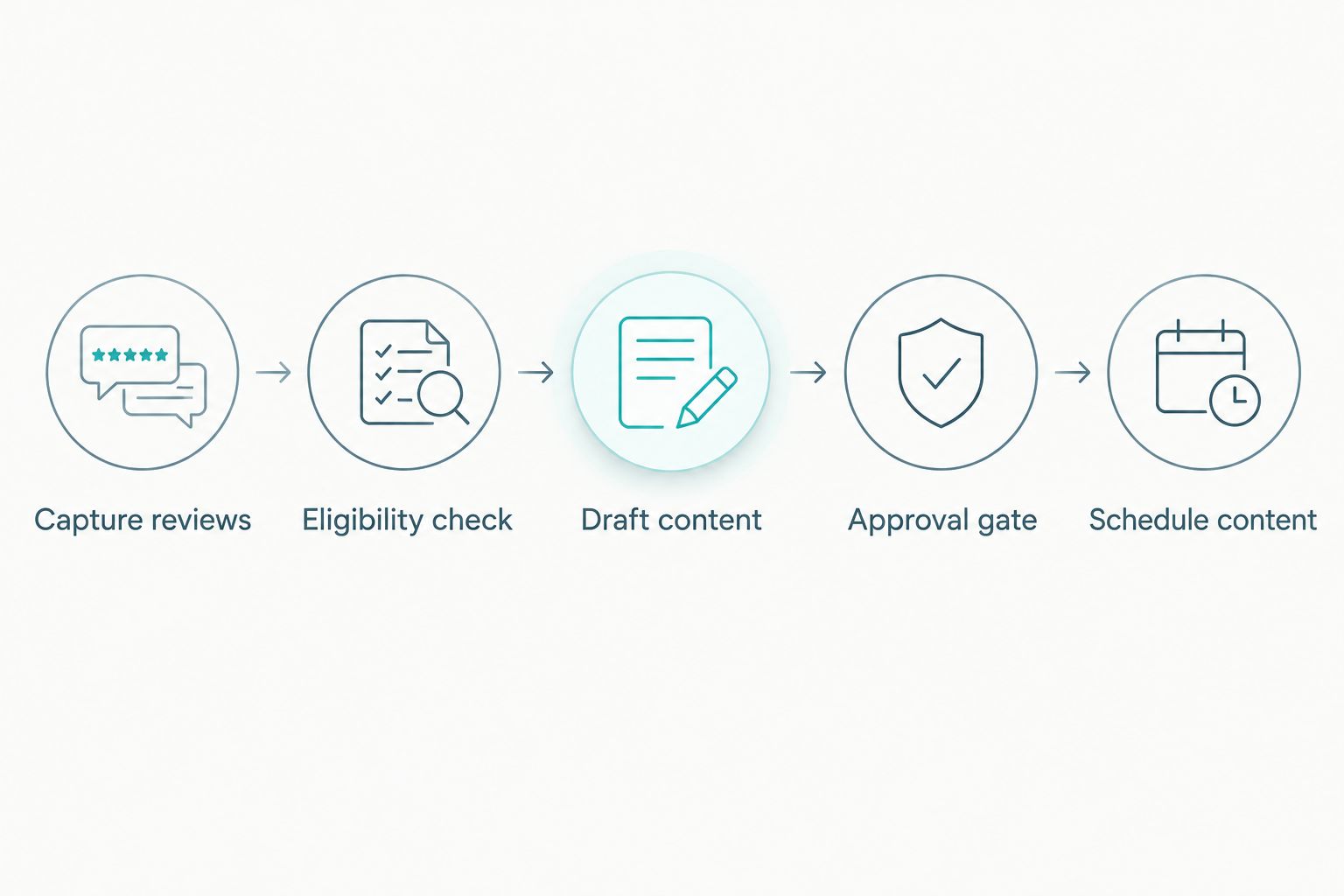
For a booking explainer, check the actual booking process before approving the copy. Avoid phrases suggesting that patients recommend the clinic, and do not turn a reviewer’s treatment outcome into a claim about expected results.
Scheduling and verification configuration
The final stage should accept approved drafts only. In the 2026 content calendar, review-derived topics belong alongside other useful clinic information—not in a separate stream that bypasses editorial checks.
- Check the publishing conditions. Require
approval_statusto equalapproved, the approved draft version to match the current version, and the route to equalcontent_candidate. - Map the destination deliberately. Select the clinic’s intended social account and confirm its authorisation. Keep destination settings separate from review-location settings so feedback cannot route to the wrong practice.
- Record the scheduling result. Save the publishing system’s returned post identifier and status. Mark an item as published only after publication is confirmed, not when the scheduling request is submitted.
- Run controlled tests. Use 3 test records: an eligible administrative topic, a sensitive review and a repeated source record. The first should create a draft; the second should remain restricted; the third should not create a duplicate.
Expected result: Only a current, approved draft enters the publishing queue, and its eventual publication can be traced without exposing patient information.
Use invented test content rather than a real patient’s review. Test records are for checking behaviour, not for demonstrating patient experiences or building a public portfolio.
When a Google review is updated
An updated review is a separate workflow event, not a fresh content opportunity. Compare its current updateTime with the revision previously processed.
For your 2026 change-handling workflow, update the restricted source record and put any linked unpublished draft on hold. Clear the previous eligibility and approval decisions where the change affects the topic or supporting context. Then repeat screening before releasing anything.
Do not automatically overwrite a published post because a review changed. Send the linked item to a human owner to assess correction or removal. Independently verified service information can remain accurate even when the feedback that prompted its creation changes.
Deletion requires reconciliation rather than an update timestamp. If a complete retrieval no longer contains a previously captured review, flag the missing source for review; distinguish genuine removal from an incomplete or failed retrieval.
Troubleshooting
Reviews do not enter the queue
Confirm that the connected account manages the intended verified location and that the project has the required API access. Inspect the authentication response, location resource and request error before changing filters. A permission failure is not an empty review feed.
The same review creates repeated drafts
Check the source key and the write order. Store the location and reviewId before downstream drafting, then update the same record when updateTime changes. A retry should resume processing, not create a second content item.
Sensitive information appears in notifications
Inspect every notification and error-log mapping. Remove raw comments, reviewer identities and health details from general team messages. Send a restricted record reference and routing status instead, then review any accidental exposure through the clinic’s incident process.
A pending draft reaches the scheduler
Remove the direct connection between draft creation and scheduling. Add the approval and version checks immediately before the publishing action. Test with a pending record and confirm that the integration stops without sending it downstream.
Scheduling fails after approval
Check account authorisation, destination selection and the publishing response. Keep the approved item in a recoverable failed state rather than recreating it. Before retrying, check whether the first request already produced a scheduled post.
Customize your workflow
Once the basic route works, extend it by location, language or approved information category. Give each clinic its own factual materials and destination mapping; shared templates must not import another practice’s booking instructions or service details.
Track processing failures, duplicate prevention, approval delays and confirmed publication separately from social engagement. These measures tell you whether the workflow operates correctly. They do not prove that review-informed content generated patient enquiries.
ReachDigital offers social media management and content production for businesses, including medical services. If you want agency-managed content, brief the work around permitted topics, approval ownership and factual sources—not automatic testimonial output.
Plan your clinic content workflow
Review social media management for medical practices and define your content approval requirements.
FAQ
What is google reviews to social media content automation for clinics?
It is a workflow that captures Google Business Profile feedback, screens it and creates approved social content drafts. For clinics, the safe design separates original service information from patient testimonials and keeps approval before scheduling.
Can a South African clinic automatically publish patient reviews?
Do not configure automatic patient-testimonial publication for an HPCSA-registered practice. Professional advertising restrictions and privacy requirements must be addressed before any review-derived material reaches a public channel.
Does a public Google review give permission to reuse it on Instagram?
No, public visibility is not blanket permission for reuse in clinic advertising. Review the intended use, privacy obligations and applicable professional rules rather than assuming the original post authorises another publication.
Can Google Business Profile connect directly to an automation workflow?
Yes, its reviews API supports an authenticated integration for authorised business locations. Direct access requires the relevant project configuration and access; the connection does not provide content approval or testimonial permission.
What should happen when a patient edits a Google review?
Detect the changed updateTime and reassess any linked unpublished draft. Put publication on hold when the change affects eligibility or context, and require a human decision for already published material.
What clinic content can review feedback help create?
Feedback can identify general information gaps, such as unclear booking instructions. Write the resulting post from independently verified clinic information without reproducing patient identities, quotations or treatment experiences.
Can ReachDigital manage the social content rather than the clinic doing everything?
ReachDigital offers social media management and content production, including for medical businesses. Define the scope and clinic-side approval responsibilities when briefing the work; the agency’s service does not remove professional compliance obligations.
One last thing
The most useful review-informed post often contains no review at all. Feedback identifies a question; verified clinic information supplies the answer. In 2026, build the workflow around that distinction, and you get content that remains useful without turning a patient’s experience into an advertising claim.
Related guides
- Content marketing for a medical practice in South Africa
- Online reputation management for medical practices
- Creating a social media content calendar